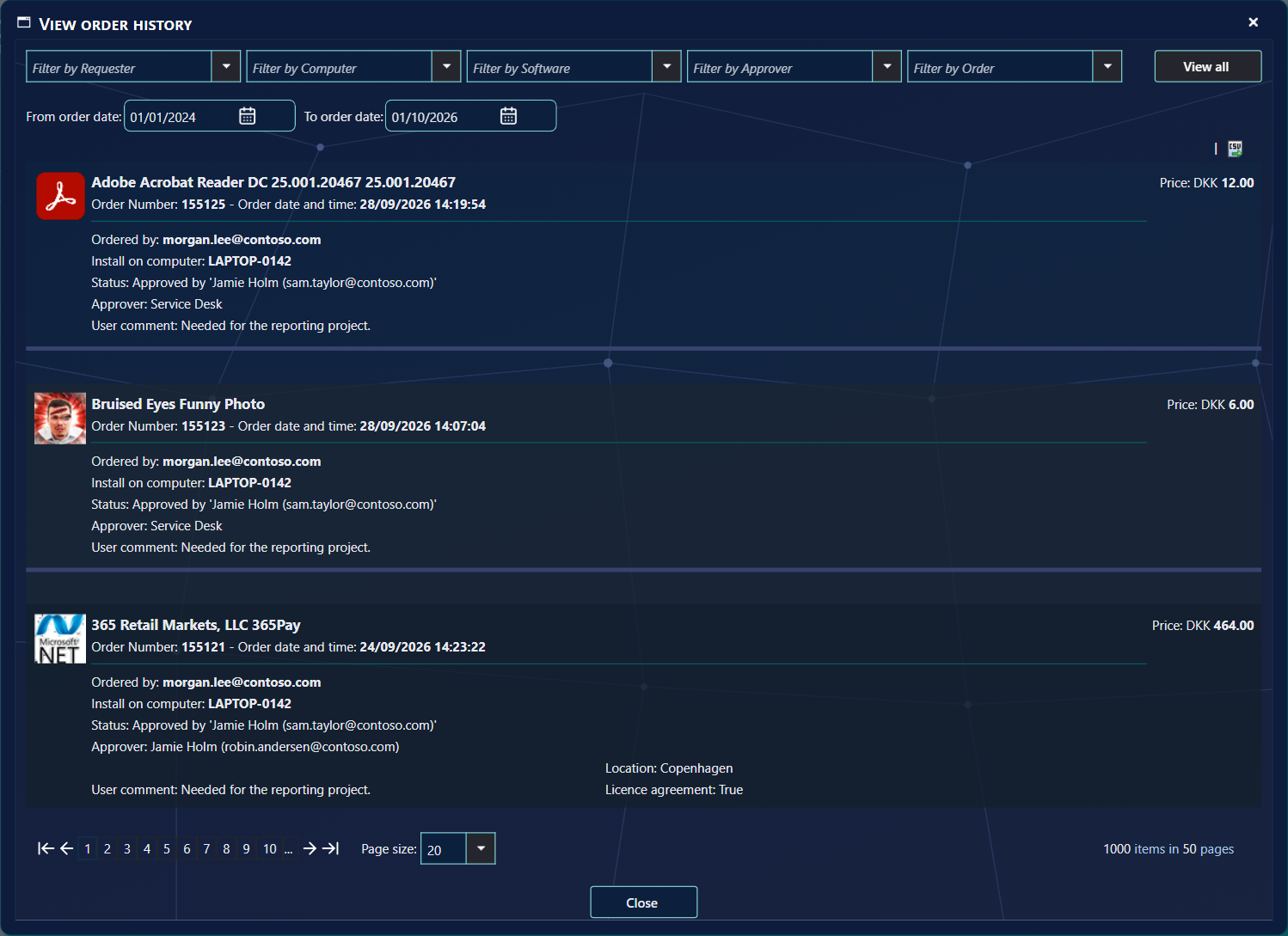
The order history shows orders and their decisions: who ordered what, for which device, who decided and what
they wrote. Open it with View order history in Manage Orders, Shop Statistics or Approvers View.
FiltersPeriodCSV export
1 The window
View order history, opened from Manage Orders.
Opened from
Shows
Manage Orders, Shop Statistics
All orders, with the Filter by Approver choice.
Approvers View
Only the approver's own orders, without the approver filter.
2 Finding orders
Use one filter at a time — by requester, computer, software, approver or order number. Choosing a
filter clears the others. View all clears the filter.
From order date and To order date set the period; it starts as yesterday to tomorrow. If an order
you expect is missing, widen the period.
The list shows 20 orders per page; change it at the bottom.
An order more than once
An order is listed once for each approver it had, so an order with several approvers appears several times.
3 What an order shows
Line
Meaning
Order Number, date
Which order, and when.
Ordered by
The requester.
Install on computer
The device and its organisational unit.
Status
Approved, rejected, waiting or no approval required — and by whom, when someone else than the approver decided.
Approver
The approver this line is about.
User comment, Message from approver
The requester's and the approver's messages, when there are any.
Order details, Price
The requester's answers, and the price.
4 Export
The CSV button above the list, on the right, saves the orders you are looking at as a file for Excel: the
order number and date, the requester and computer, the application, the status and who decided, both messages,
the order details and the price.
5 Best practice
Use one filter at a time. Choosing a requester, computer, software, approver or order number clears the other filters, so two filters never narrow each other.
Check the period first. It starts as yesterday to tomorrow. Widen From order date and To order date before you conclude that an order is missing.
Export after the filters are set.CSV saves the orders that are in the list, so set the filters and the period before you export.
6 Troubleshooting
Symptom
Cause
What to do
“Access denied.” when you open View order history.
The history can only be opened from Manage Orders in the same session. The page is refused when that has not happened.
Open Manage Orders from the menu, then click View order history again.
An order you expect is not in the list.
The period starts as yesterday to tomorrow, or a filter is set.
Set From order date and To order date wider, or click View all (tooltip “Clear filters”) to remove the filter.